This blog post is where I'll post those details. I'll update it as more becomes known about the D3. All details here pertain to firmware versions 1.29, 2.29, 3.29, and 4.29.
1. The Bottom Bar: Visible no matter which home page you are on.
- Successive taps on the left rectangular area will toggle between a view of the Day/Date, Free Space in MB and %, as well as the number of running applications.
- Touch and hold the left area of the bar to bring up an array view of the different home pages. Then tap on any page to go directly to it.
- Tap or slide (to the left) the APPS square to switch to an array view of all the apps installed on your D3. That page is scrollable if there is more than one page worth of apps installed on your D3. Tap (or slide left) HOME to switch back to the home page view.
- Below the bottom bar is a short white line segment. It shows the relative position left and right within the many home pages you are currently viewing.
- In orange letters below the time numbers and above the day text there is a "time" word. Tap anywhere on the widget to toggle randomly between EnjoyTime, PartyTime, BreakTime, and HappyTime.
- From the Home screen tap the Settings icon, then tap Home Settings. You can then pick the number of visible screens from 1 to 9. A reboot is required to implement the change.
- You can also select the default screen (the screen the D3 returns to when you tap the HOME icon) from among the visible screens. This feature might come in handy when you have a selection of apps for Home, one for Work, or for any other unique purpose. Switch to make your Work page the default when at work.
- Analog Clock: A simple contemporary analog clock face. Hands only with no numbers displayed. No hidden features I could find.
- Design Clock: An analog clock with each quarter of the face displaying a different color and word. The words include partying, relaxing, chilling, and enjoying. Tap the face to change.
- Sports Clock: Also an analog clock, although the face graphics are sports balls. Tap to change from Basketball, Soccer, and Baseball. An android robot sits on top and wears a different sports jersey relating to the visible sport. Lakers for basketball, Dodgers for Baseball, and a red jersey for Soccer I don't recognize. The soccer droid is randomly animated with a quick lean to the right.
- Day & Time: A digital display displaying the time, day, and date. You can set different scenes behind it that will change with your specific locale seasons.
- Calendar: A simply flipcard widget that displays the weekday and date, as well as any current or upcoming events you may have added to the calendar. A tap in the widget takes you to the android calendar app.
- Music Widget: Representing a CD player, it displays the current song title and album name, as well as the cover art as if printed on a CD. You get simply play controls including a play/pause button, and fwd/rev-prev/next buttons. Tap on the CD and it takes you to the Now Playing page of the music app.
- Picture Frame: Looks like a stack of Polaroid prints. Prev and Next controls on the bottom. The current photo is displayed. Tap on the Photo to be taken to the pictures app.
- Power Control: A bar of four control icons. They include WiFi, Bluetooth, and Sync on-off toggles, as well as a screen brightness 3-way toggle. Very handy.
- Google Search: Basically a shortcut to Google web search. In Settings there are also options to search from among your apps and your contacts as well. Open Settings, then Search.
- Videos: A simple shortcut to the Video app. It displays a snapshot from the last video played, as well as the filename and position % within that video last where you last left it. It also shows the time and date that video was last viewed. Tap on the overlaying PLAY icon to open the Video app at that position.
- Opening the Video app leaves you on the Now Playing screen. To see a list of the onboard videos you'll need to tap the big arrow in the upper right corner.
- Once in the video list view, you may or may not see your videos listed there. Videos should be saved in the Media/Videos folder. You can move up and down the directory folder structure with taps on the top line items.
- You can search by Folders, Thumbnails, or Bookmarks.
- If a playing video doesn't fill the whole screen, a long press on the center for a second or two will cycle through stretch-to-fit options.
- Two-finger spread can stretch a video to fill the screen area, regardless of original side bars or aspect ratio.
- Tap the D3's Settings icon for Details, AV Out control, Adding a bookmark, Screen capture, and more Settings.
- Those additional settings include lengthy Subtitle options, Pan & Scan with Pinch-to-Zoom, Aspect ratio, a separate Pan & Scan option, AV out setting, Audio track choice, JetEffect (EQ) setting, Repeat, and Skip Interval.
- Touchscreen devices really point out the interface flaw if you enjoy watching videos without looking through a smear of fingerprints. A great feature of the D3 is the external control buttons (top edge when playing video). Press the PLAY button to start or pause the video playing. The Next/Prev buttons will Fast Forward or Rewind your video when held down. Use the Skip Interval Setting mentioned above to set the fixed length you want a single press on those buttons to skip forward or back in the video. The power button (bottom edge when watching video) will also lock the touchscreen with a single press but leave the external buttons active. A great way to prevent accidental interruption of your video.
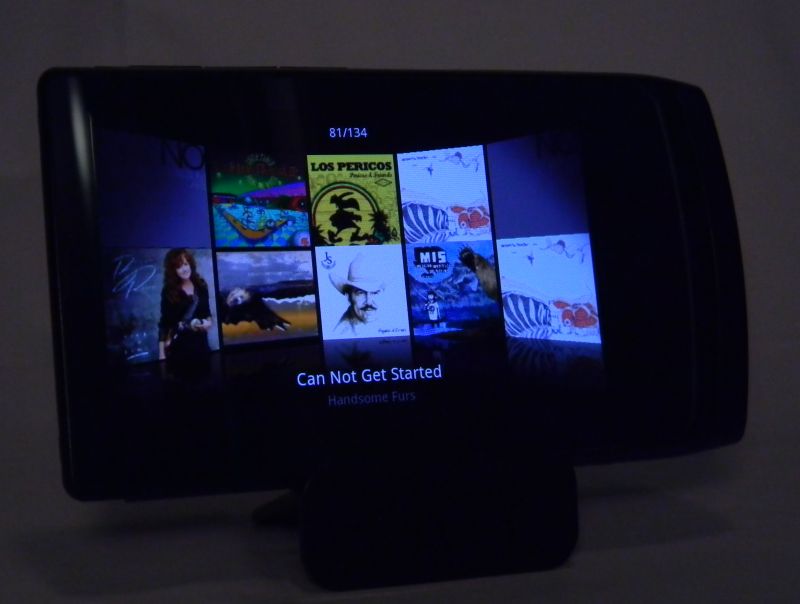
- Opening the Music app leaves you on the Now Playing screen. To see a list of the onboard songs you'll need to tap the big arrow in the upper right corner.
- While on the Now playing screen, a tap on the album art will display lyrics if any are associated with the current song.
- Tap on the song title and it will take you to that song's alphabetic position in the main song list.
- Tap on the Album name and it will take to the a list of all the songs in that album
- Tap on the artist, and it will create a list including all the songs by that artist.
- The song position bar near the bottom can be tapped to move directly to that relative position in the song, or you can slide your finger along the bar slowly to hear the song change as you find the new position.
- For Music access or control when you are NOT in the music app, you have several choices:
- External buttons on the right side of the D3. Next/FFWD, Play/Pause, and Prev/REW. To fast forward or reverse, hold down the next or previous button respectively.
- The Music widget. Place it on any home page, or all of them if you wish. Obvious Next, Play/Pause, and Prev buttons, and a tap on the cover art will take you to the Music Now Playing page.
- The alert bar (top edge of the screen). When music is playing the play icon [>] will appear there. Slide down that alert bar to reveal ongoing info including the Title, Album, and Artist currently playing. Tap on it to be taken into the Music app.
- Opening the Pictures app leaves you on the Picture view screen. To see a list of the onboard photos you'll need to tap the big arrow in the upper right corner.
- The Photo view screen has basic controls visible. From left to right across the bottom they are Rotate, Play, and Set as. At the top is displayed the number of photos in the current folder as well as the current image's position among them.
- Tap Rotate to temporarily rotate the current image 90 degrees clockwise.
- Tap Play (>) to begin a slideshow of the images in the current folder.
- Tap the center of the screen to turn on and off the on-screen controls.
- Tap Set-as to pop up a window with options to set the current image as an icon for one of your contacts, or background wallpaper for the home screen. Pick Contact and you'll be taken to a list of your contacts. You can even create a new contact at that time which the selected photo will become the icon for. Use the D3's Back button to back out of any selection.
- Tap the D3's Menu button while in the pictures app to bring up List, Details, Share. Crop, Add-to-favorites, and additional Settings.
- List takes you to the pictures file listing. You can then sort by Folders/Files, Thumbnails, or Favorites.
- Details brings up a window with File size, Resolution, and Date taken for the current image.
- Share pops up a window with Bluetooth and Email options to send the current photo through.
- Crop will overlay the current image with a green outline. Use one or two fingers to stretch the outline around the area you want cropped in the photo. Pan the outline around with a single finger in the middle of it. Tap the X to cancel the crop. Tap the storage icon to create a new picture file of just the area within the green outline. This does NOT overwrite the original file.
- Add to Favorites will add individual images to a list you can then choose to view separately from your big selection. Images in the favorites list will play back in the order they were added. Something to consider if you are putting together a specific slide show.
- Settings is where you'll find slideshow options. You can set both the interval (2, 3, or 4 seconds) and the transition (Fade in & out, Slide left-right, and Slide up-down).
- You can double-tap (to zoom in steps) or use two fingers to spread or pinch (zoom in or out). Use a single finger to pan around any image you have zoomed in on.
- If you like music during your slide shows, press the external PLAY button to begin playing the last song that was played.
10. Internet, the web browser. The D3's high resolution screen means it works great as a web browser. The capacitive screen reacts to a light tap. It will also zoom in on any web page with a two-finger spread, and zoom out with a pinch of two fingers. A double-tap will also zoom in on any column or photo. Options are three layers deep. This web browser will do just about every setting your desktop browser would have. There is no Flash support (yet). This will be your one frustration.
- With the browser open, tap the android menu button to bring up options including:
- New window. Tap to open a new copy of your home page.
- Bookmarks. Tap to see an array view of bookmarked pages you've created, as well as several included standards. Pick from all bookmarks, Most Visited, or History.
- Windows. Tap to bring up a list of all open web pages and a New Window option.
- Refresh. Tap to reload the current page.
- Forward. Compliment to the D3's Back button.
- and More. Tap More to bring up:
- Add bookmark
- Find on page
- Select text
- Page info
- Share page
- Downloads
- and Settings. Tap Settings to bring up:
- Text size (tiny to huge in 5 steps)
- Default zoom (Far, Medium, or Close)
- Open pages in overview (checkmark)
- Text encoding (Latin, Unicode, and three Japanese options)
- Block pop-up windows (checkmark)
- Load images (checkmark)
- Auto-fit pages (checkmark)
- Landscape-only display (checkmark)
- Enable JavaScript (checkmark)
- Enable plug-ins (checkmark)
- Open in background (checkmark)
- Set home page (text input pop-up)
- Clear cache
- Clear history
- Accept cookies (checkmark)
- Clear all cookie data
- Remember form data (checkmark)
- Clear form data
- Remember passwords (checkmark)
- Clear passwords
- Show security warnings (checkmark)
- Website settings (advanced for individual websites)
- Reset to default.
- There is no app store on the D3. Once hooked up to your PC and mounted though, you can access the folders on its storage space. One is APK. Any android program file (*.apk) you can find on the web can be copied to this folder. Once the D3 is safely disconnected from your PC it will notice and then offer to install any programs it finds in that folder.
- The D3 is NOT a pure android device. Cowon has altered it somewhat, and so not every android program you might find will run perfectly. Proceed with caution.
That's all for now. The D3 comes with several other apps, but how many will be used will vary with each owner. You can read more about them at Cowon.com. My inital review of the D3 can be found HERE.
4D
PS... If you enjoy my blog, please consider tapping on any ad you find here. Thanks!


 arrived straight from Korea on Monday 1/31/2011. The D3 is the first device from Cowon running Android. At the moment it is running Android 2.1 (I think), although I'm hoping they'll upgrade it to 2.2 (or higher) eventually. I've actually seen no proof anywhere of what version Android is on the D3. To distinguish their android devices Cowon has adopted




 . It is very close right now.
 players don't have it, and swipe-to-unlock is an unnecessary extra step in an otherwise competent execution.

 , so Internet gets a B from me.

 is $275. The new D3 is NOT $83 better than a new Touch. The price is too high, even if every feature worked perfectly. As I stated previously, Cowon has updated the D3 Firmware 4 times since I received it. It still exhibits random freezes, audio cut-outs, slow touch response, and no easy access to Android apps. I assume Cowon will eventually resolve these issues, but right now the D3 performs worse than my old HTC Hero Android phone. Cowon needs more experience with Android. Hopefully they are learning fast, as the D3 is not quite ready for prime time.

 Posts
Posts


